Setup
This section describes the minimum setup required to use AIBooster.
The impact of the installer can be verified from Component Details.
Supported Environment
For machines running Server and Agent, the following conditions must be met:
| Server | Agent | |
|---|---|---|
| CPU | Intel/AMD (64bit) 8 cores | Intel (64bit) (*1) |
| GPU | - | NVIDIA Datacenter GPU (*2) |
| Memory | 64GB | 32GB |
| Storage | 1TB | - |
| OS | Ubuntu 24.04 | Ubuntu 24.04 |
- *1: AMD CPUs are not supported unless there is a paid deployment contract.
- *2: Operation has been confirmed on H200, H100, A100, and RTX 6000Ada. GPUs compatible with NVIDIA DCGM may work but are currently not supported.
On-Premises Version
In the on-premises version, you can start using the product by installing AIBooster Server and Agent on your nodes.
Here, we introduce the procedure for installing both Server and Agent on a single node. For configuration methods when installing Server and Agent on separate nodes or installing multiple Agents, please refer to Advanced Setup.
Preparing the Node
Please confirm that the target installation node meets the following conditions in addition to the Supported Environment:
- Administrator privileges (sudo) are available
- Docker v28 or later is installed (Server only)
- NVIDIA DCGM v3 is installed (Agent only, for NVIDIA GPUs)
If Docker is not installed, please install it according to the official documentation below.
If NVIDIA DCGM is not installed, please install it according to the official documentation below.
Installing Server and Agent
Execute the following commands on the target node:
curl -LO https://assets.aibooster.fixstars.com/faibup-server.sh && sudo sh ./faibup-server.sh
curl -LO https://assets.aibooster.fixstars.com/faibup-agent.sh && sudo sh ./faibup-agent.sh -- --server_endpoint http://localhost
Operation Verification
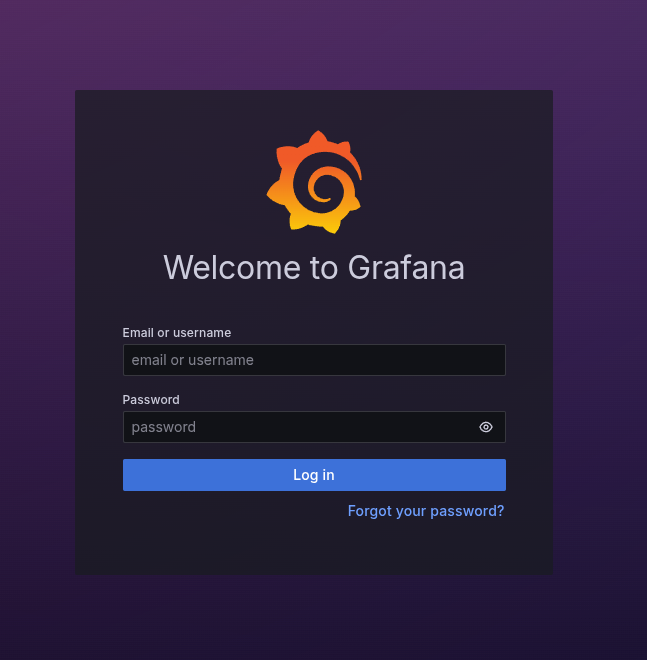
- Open
http://localhost:3000in a browser - Log in with username:
admin, password:admin - When prompted to change password, set a new password
This setup is a minimal configuration for evaluation and development environments. For production environments, please perform installation and security configuration according to Advanced Setup.